Creating shows with OnStage Show Maker
In addition to building shows on the iPad by adding files from iTunes File Sharing or from the music library, OnStage allows you to import a single bundle containing all your audio, which you can then rearrange and further configure in the app. This bundle is created on a macOS-based computer using the OnStage Show Maker utility.
Download the OnStage Show Maker ↗
Before we begin, make sure all the audio files you wish to use in your show are in a single folder, and that the folder contains no other folders or files other than the audio files. For more information about valid types of files, see KB 3748 — Valid audio file types in OnStage.
1. Launch the Show Maker
After downloading the utility and copying the application from the disk image to the Applications directory on your computer, you may need to go to the Applications folder and hold the Control key while clicking on the app and use the Open menu item to start the utility for the first time, in order to verify that you wish to use it.
2. Read the note, then continue
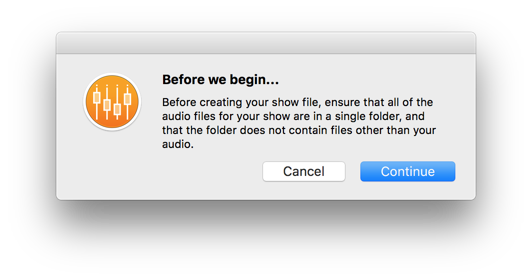
Read the message regarding the contents of the folder you will select in the next step, and then select Continue.
3. Choose the folder
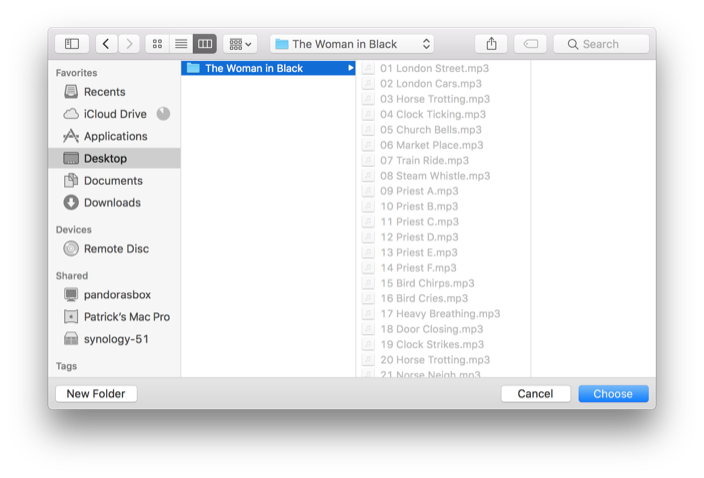
Select the folder containing the audio for your show, and then select Choose. OnStage Show Maker will show a spinning gear on the right side of the menu bar while it prepares your show file.
4. Copy the show to the iPad
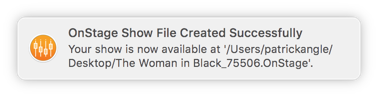
When your show file has been created, it will be placed on your desktop as a .OnStage file, and you will be notified in the top-right corner of the screen.
You can then copy this file onto your iPad using iTunes File Sharing as if it were a single piece of audio, and then open the show from the Shows menu in OnStage.